
Mastering LocalBusiness Schema on Bricks Sites (Opening Hours, Multi-Location, and Native KML)
When it comes to local search engine optimization (SEO), providing search engines with structured, easily digestible data is paramount. Google and other search engines rely heavily on Schema.org markup to understand the context of your business, its location, and its operational details.
For WordPress developers and designers building sites with the Bricks Builder, ensuring this data is implemented correctly can sometimes mean relying on heavy, bloated third-party plugins. However, with Bricks SEO, you can generate comprehensive LocalBusiness schema natively, directly within the builder ecosystem, without the need for additional add-ons.
In this guide, we’ll cover configuring LocalBusiness schema for a Bricks site, from basic opening hours to multi-location setups and native KML output.
Configuring Core LocalBusiness Schema
The foundation of local SEO is accurate NAP (Name, Address, Phone Number) data. Head to Bricks SEO → Settings → Local SEO. Here, you define your core business entity: name, type, address, phone, price range, coordinates, and opening hours.
Pick the business subtype that best matches you: LocalBusiness, Restaurant, Medical Clinic, Store, Professional Service, Automotive Business, or Home & Construction Business. This gives search engines the most precise categorization available today.
Defining Opening Hours Accurately
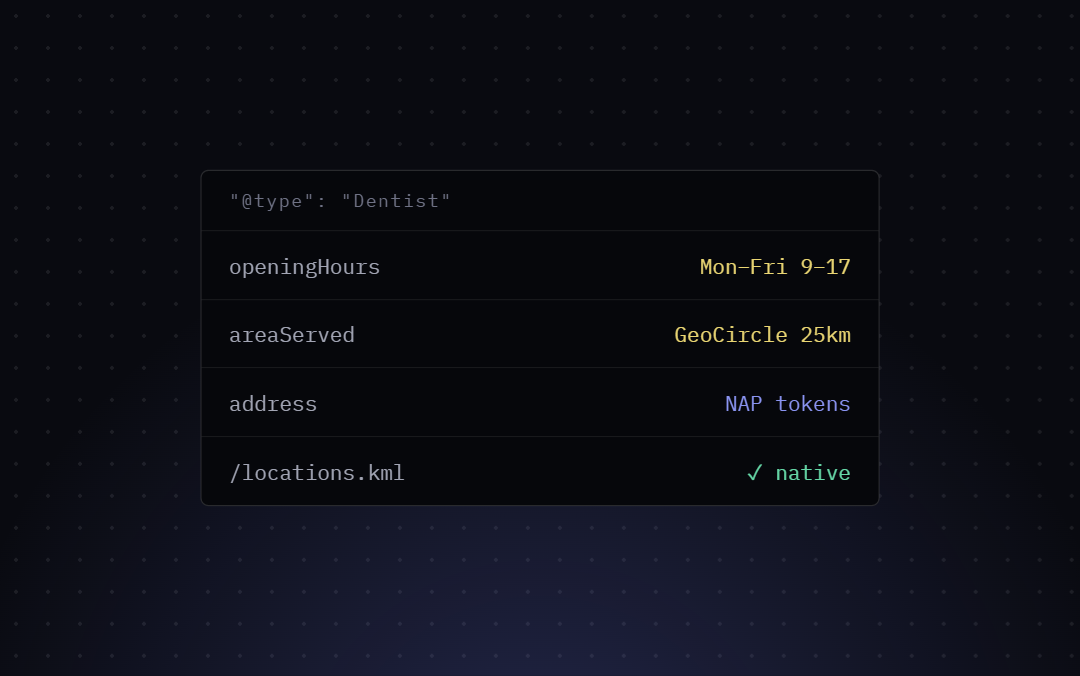
Opening hours are a meaningful signal for local search, especially for voice queries like “open near me now.” Enter them as plain text, one schedule per line — e.g. Mo-Fr 09:00-17:00. Bricks SEO parses this at output time and only emits a valid OpeningHoursSpecification entry for lines it can confidently interpret; malformed lines are silently skipped rather than breaking your schema.
Multiple Locations? Override Per Page
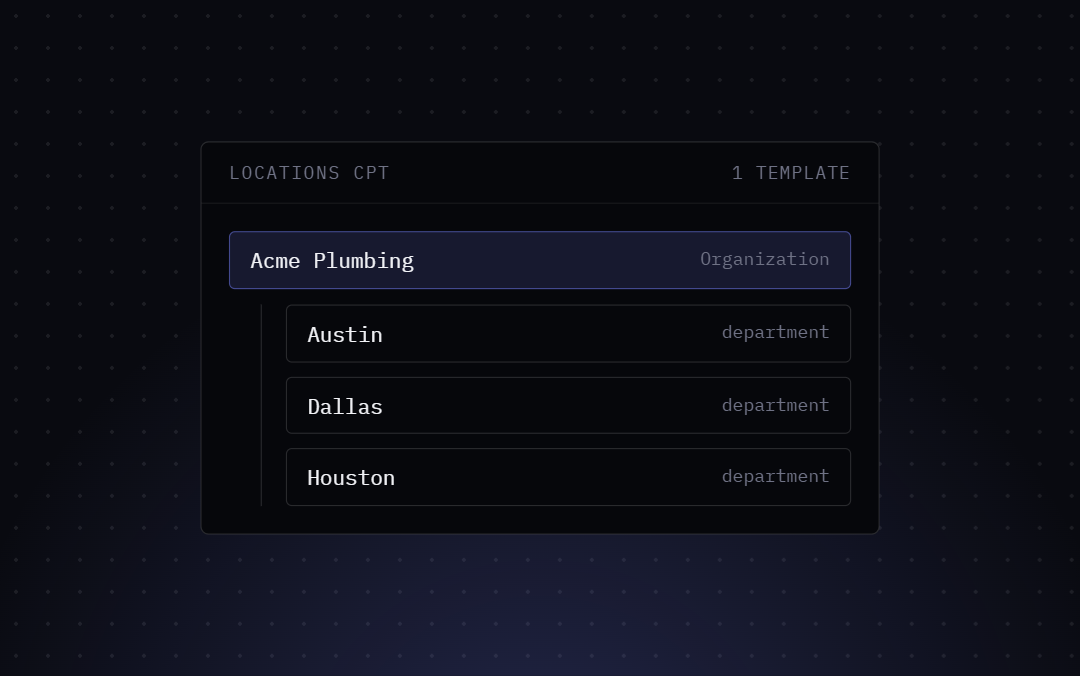
If you run more than one location, you don’t need a separate plugin for that either. Open any page in the Bricks SEO panel and switch to the Local tab (it appears automatically once Local SEO is enabled site-wide). Toggle “Override business details for this page,” then fill in that location’s own address, phone, hours, and coordinates.
That page now outputs its own LocalBusiness node with its own @id, independent of your site-wide default. Pages that don’t set an override keep using your global settings, exactly as before.
Generating KML Output Natively
Keyhole Markup Language (KML) is an XML notation for geographic data, readable by Google Earth and importable into Google My Maps. Bricks SEO generates this automatically at /locations.kml, with no separate plugin required.
Once you’ve set up a per-page override for each location, /locations.kml automatically includes one placemark per location — your site-wide default plus every page with an override — each with its own name, address, phone, and coordinates, kept in sync with your location pages at all times.
One honest caveat: this file isn’t something you submit to Google Search Console (GSC doesn’t accept KML as a sitemap type). Its real use is importing into Google My Maps, or sharing directly — for example, embedding a Google My Maps view built from it on your contact page.